 DocuAssist.AI Guide
Edit existing text in a PDF
Fix a typo, update a date or change a name in a PDF without going back to the original Word file. Edit Text lets you click on words that are already in the document and type over them.
Before you start
- You need Edit access to the document.
- The PDF must not have a password or a watermark, must not be waiting for signatures, and must not be shared with Protect & Send.
Change text
- Turn on Edit Text
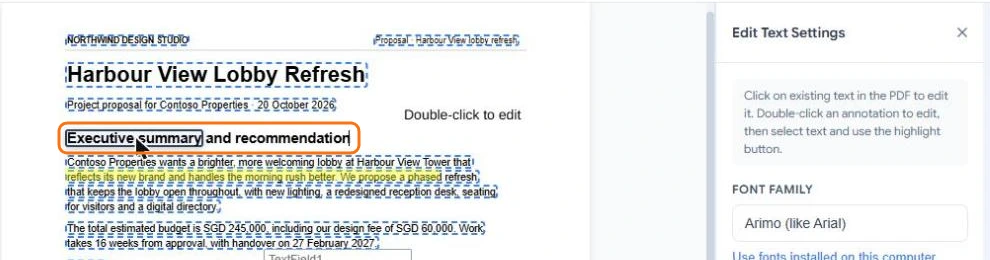
Select Edit Text (Shift+T) in the tools panel. Every piece of text on the page gets a dotted outline.
- Click the text and type
Click inside a line and type, delete or select words as in a word processor. Use Edit Text Settings to change the font, size, colour or style of what you type.
- Save your work
Select Save to keep your changes. Until you apply them, your new text sits on top of the old words, which are still in the file underneath.
- Apply the changes to the file
Select Apply text next to Save — it shows how many changes are waiting. DocuAssist.AI then writes them into the PDF itself, so the old words are removed from the file rather than hidden under a cover. This can't be undone.
If a change cannot be applied
Before applying, DocuAssist.AI checks every change. If one cannot be applied, for example because the text is drawn as a picture, it tells you which and lets you apply the others or cancel. Changes that could not be applied are kept on the page as editable text, so nothing you typed is lost.
Credits
Each time you select Apply text, it uses 50 credits, shown in your credit history as True text edit. Saving without applying is free. See Credit rates.