 DocuAssist.AI Guide
Share documents and folders
Give people access to a document or a whole folder by email. You choose whether they can read or edit it, and whether they can download, copy or print it.
Before you start
- You need to be the owner or an admin of the workspace to share.
- The people you share with do not need an account yet. If they have none, they get an email and see the document once they sign up with that address and confirm it.
Share a document or folder
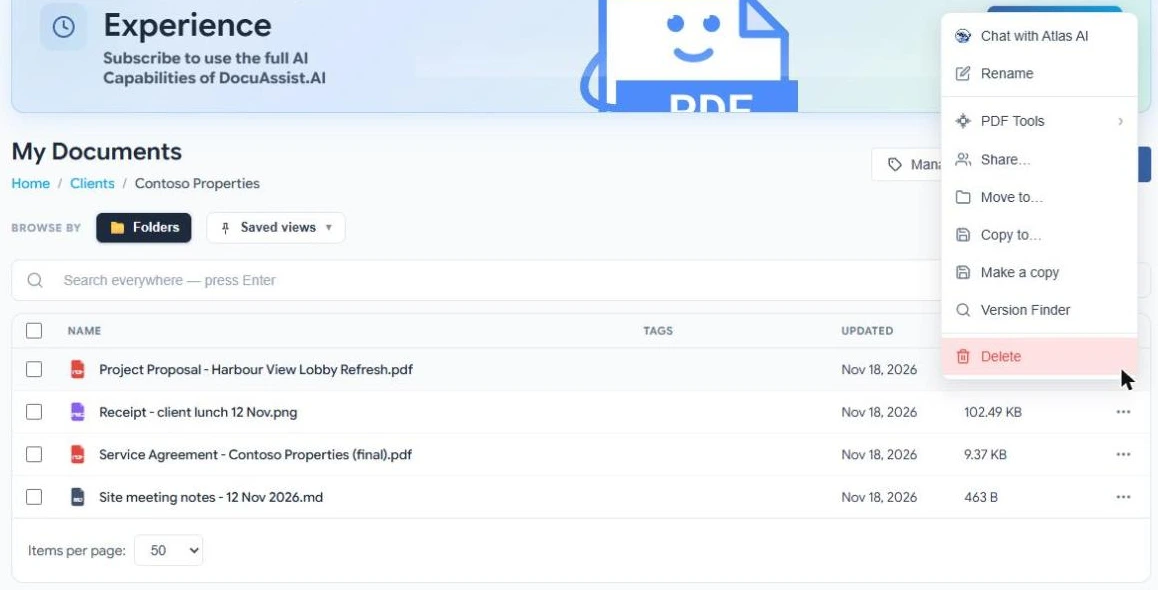
- Open Share
Select ⋯ → Share on a file or folder, or tick several items and select Share in the dark bar.
- Add people and choose their access
Type names or email addresses in Add emails or contacts. Your contacts appear as you type. Choose Can read or Can edit.
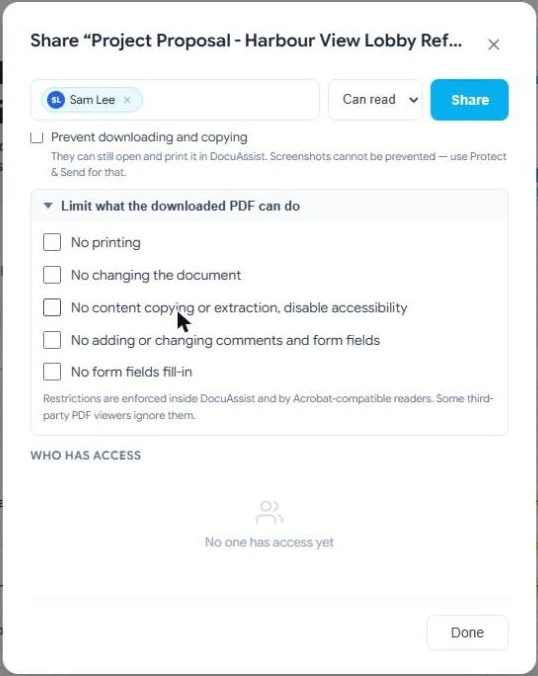
- Set limits if you need them
- Tick Prevent downloading and copying to keep the document inside DocuAssist.AI. People can still open and print it there.
- Open Limit what the downloaded PDF can do to stop printing, changes, copying, comments or form filling in the copy they download.
- Share
Select Share. Everyone you added gets an email and a notification with a link to the document.
Sharing a folder gives access to everything in it, including files added later. The limits for the downloaded PDF apply to PDFs only. A file that is not a PDF cannot carry those limits, so it can be opened but not downloaded when limits are set.
Change or remove someone's access

Open Share again. Under Who has access:
- Change Can read or Can edit for that person.
- Select the chip, such as Download ok, to change what that person may download, copy or print.
- Select × to remove their access.
People who were invited but have not signed up yet are listed too.
When someone asks for access
If someone opens a link to a document they cannot see, they can select Request access. The workspace owner and admins get a notification and an email. Open the request, choose the access level and any limits, and select Share — or Decline. The person is told either way. Requests are never approved from the email itself.
How safe is a share?
Read access and the download limits stop the actions inside DocuAssist.AI and in PDF readers that respect them, such as Adobe Acrobat. They cannot stop someone taking a screenshot or photo of the screen. For sensitive documents, use Protect & Send, which sends view-only copies marked with each reader's name.