 DocuAssist.AI Guide
Delete files and folders
Delete files and folders you no longer need to free up storage.
Deleting cannot be undone
A deleted file or folder is gone for good, including everything inside a deleted folder. Download a copy first if you might need it again.
Delete a file or folder
- In My Documents, select ⋯ → Delete on the row, or tick several items and select Delete in the dark bar.
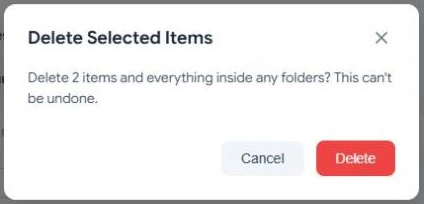
- Read the message. When you delete a folder, everything inside it is deleted too.
- Select Delete to confirm, or Cancel to keep everything.
Items you cannot delete
- The folders DocuAssist.AI creates for you: Library, Shared with me, Signed Documents and Reviewed Documents.
- A folder that an AI Workspace project or a website chatbot depends on. Its row says which one it belongs to. Remove it from the project or chatbot first.
- A document shared with you. Ask its owner, or remove it from your view by asking them to stop sharing it.
What happens to shares and links
When you delete a document, the people you shared it with lose access, and links to it stop working. Signed copies that were already delivered to other people's accounts are theirs and are not deleted.
Related
Last updated on November 18, 2026